You do not need to be a software engineer to take this course. You do need a Zo Computer account, basic comfort with files and folders, and a willingness to read a small amount of code without panicking. That is enough.
Required
1. A Zo Computer account
Sign up using Jing’s referral link (includes $10 in free AI credits):
https://zo-computer.cello.so/8dcc6g0vZVs
The free tier is enough to complete every exercise in Phase 1. You can upgrade later if you want more compute or longer-running services.
2. The ability to find these areas inside Zo
After you log in, take a minute to open each of these areas at least once. You do not need to do anything in them yet — just confirm you can find them. They are listed in the left sidebar.
| Area | What it is for |
|---|---|
| Workspace | Your files. Markdown notes, scripts, datasets, anything else. |
| Terminal | A command line that runs inside your Zo. |
| Settings | Where you choose your AI model and store secrets. |
| Hosting | Where your sites and services live. |
| Automations | Where scheduled jobs are managed. |
If you are missing any of these, your account may not be fully provisioned yet. Refresh the page; if it still does not appear, contact Zo support before continuing.
3. An AI model selected for chat
Open Settings → AI and pick a model. A free-tier model is fine for most reading and Q&A. When the course asks you to build or modify something, switch to a stronger coding-grade model (a Claude Sonnet or higher tier model is recommended). You can switch back and forth as needed.
4. Install Clarion (two steps, one time)
Clarion is published as a set of Zo skills. You install the bootstrap skill once, then ask Zo to run it. Two steps, both quick.
Step 1 — Install the clarion-setup skill
Open Skills in the left sidebar, switch to the Hub tab, type clarion into the search box, and click Install on Clarion Setup. It will show an “Installed” badge once it is ready.
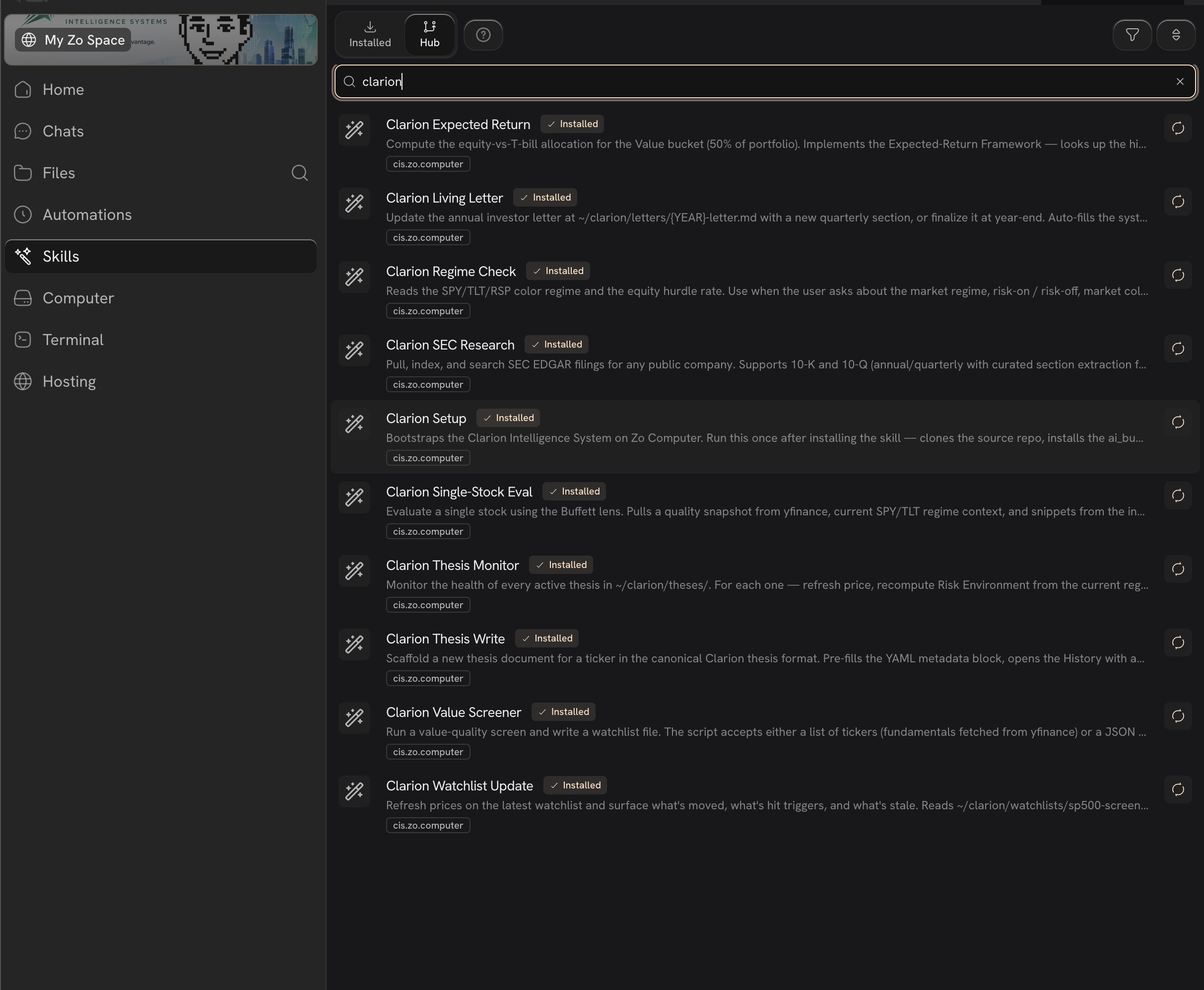
You only need to install Clarion Setup. When you run it, it pulls in the rest of the clarion-* skill set automatically — regime check, value screener, SEC research, single-stock evaluation, thesis writing and monitoring, watchlist updates, and the living-letter helper. Everything shows up under Skills in one shot.
Step 2 — Run the setup from chat
With the skill installed, open the Zo chat and paste exactly this:
That is it. No curl-pipe-bash, no MCP server wiring, no manual Python install. If anything looks off later, ask Zo to verify:
git clone https://github.com/jingerzz/clarion-intelligence-system.git ~/clarion-src
cd ~/clarion-src
bash scripts/bootstrap.sh
The chat-driven path is recommended — the skill knows how to register Clarion with your Zo session so subsequent prompts find it automatically.Recommended (but not required)
- A Claude Sonnet-class coding model for any build steps later in the course. Faster and more accurate than the free tier when editing code.
- Claude Code or Codex as optional coding assistants. Useful if you want to make deeper edits to the engine. Skippable.
- Basic terminal comfort — knowing what
cd,ls,python, andgitdo, and being willing to read an error message instead of closing the window. - A GitHub account if you want to fork the Clarion repository and make your own changes. Optional.
Not required
You will see these terms in the course. You do not need any prior experience with them to start.
- Paid market data subscriptions
- A production trading account
- Prior MCP, RAG, or LLM internals knowledge
- Prior experience deploying web apps
- Prior Python expertise beyond reading short scripts
If any of those are familiar, the course will move quickly for you. If none of them are, the course was written for you specifically.
Accounts and access
Zo can store credentials as environment secrets. Never paste API keys directly into course files or chat messages. When the course needs a key, it will tell you where to put it inside Zo settings.
The course relies on free public data sources where possible:
- Yahoo Finance for stock and ETF price data
- SEC EDGAR for company filings
- Local files and hosted services on Zo for everything you build
You will not need a Bloomberg terminal, a Refinitiv subscription, or a paid API key to complete the exercises.
Where your work lives
The setup above creates two things in your workspace:
~/clarion-src/— the Clarion engine source code (the repository contents). You do not need to touch this folder — it is owned by the installer and is updated when you re-run the setup skill.~/clarion/— your workspace. Config, theses, watchlists, research notes, decision logs. This is the folder that compounds over time. The engine reads from it; your own work writes to it.
Keep the structure boring. The point is that the AI can find things later without asking. We will explain why this matters — and walk through what each subfolder is for — in Chapter 04 (Foundations 2).
When the install finishes and the verification check comes back green, you are ready for Chapter 03 — Zo as an AI Operating Environment.