F2.1 Why workspace design matters
Imagine you hired a new analyst. On day one, you would not say “go figure out where everything is.” You would walk them through the office: this is where the research folder lives, this is where data files go, this is where finished memos land, this is the system the team uses for tracking decisions.
You are about to do the same thing for your AI. Except instead of an office, you have a Zo workspace. And instead of a verbal walk-through, the layout itself does the explaining.
A clean workspace makes the AI useful. A messy one makes it brittle. The reasoning is simple: when the AI cannot tell where things belong, it asks you. When you have to re-answer the same question every session, you stop using the AI for that workflow. The workflow dies, not because the AI is incapable, but because the friction is too high.
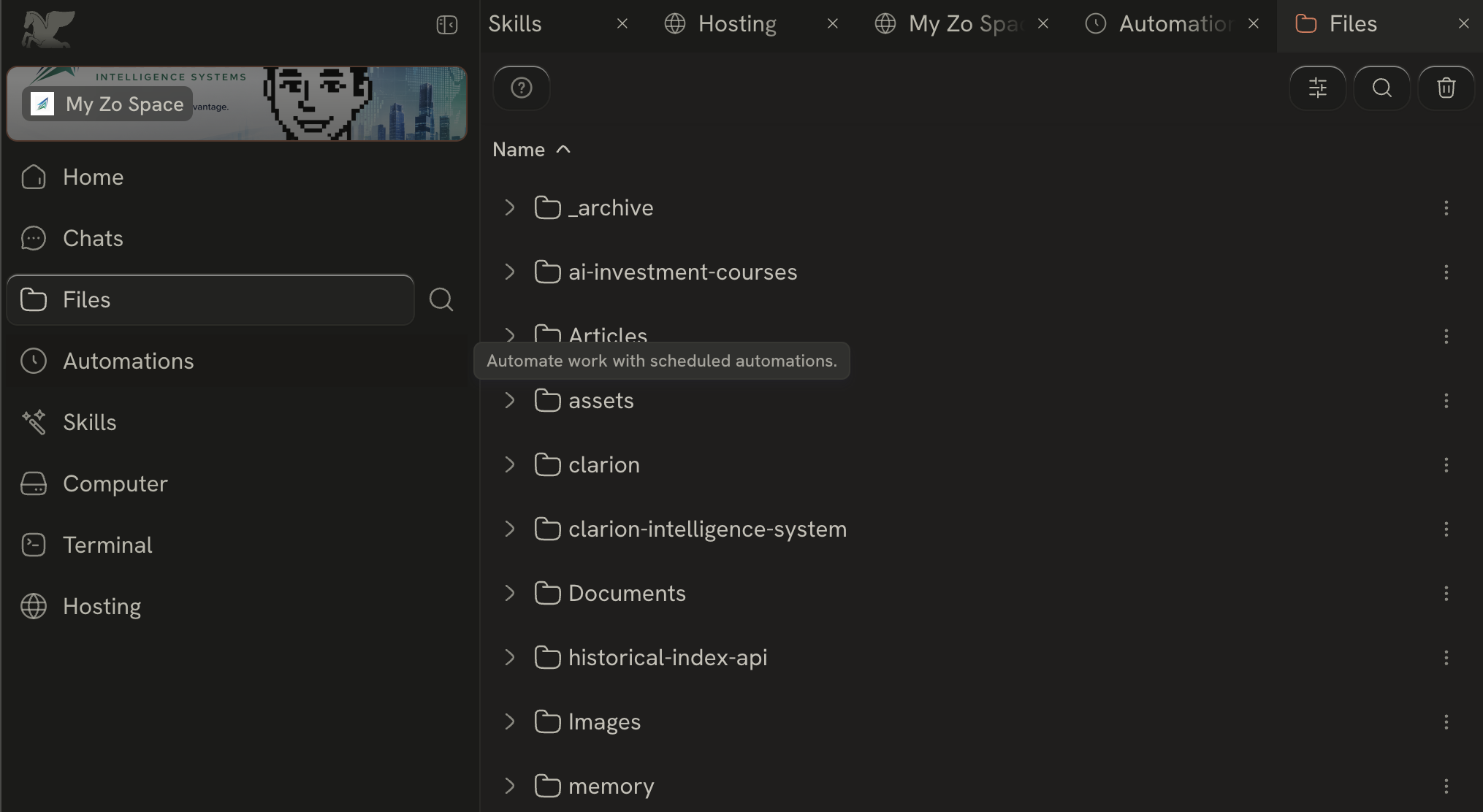
clarion/ folder is the one you and the AI will touch most.F2.2 Workspace design principles
Three principles, in order of importance.
Boring is better than clever. A folder structure you can read is more valuable than one that is theoretically optimal. If you find yourself naming a folder _workflows-v2-final-real-this-time/, stop and rename it.
Names should describe purpose, not contents. notes/ describes what goes there. markdown-files/ describes the file extension. The first survives a rewrite; the second creates confusion the moment you add a non-markdown note.
Stable beats flexible. Decide on a structure and keep it. Renaming data/ to datasets/ six weeks in means every script, prompt, and AI memory referring to the old name is now broken. The cost of a slightly imperfect name is low; the cost of frequent renames is high.
F2.3 The recommended structure
The clarion-setup skill you ran in Chapter 02 creates ~/clarion/ for you with the structure below. It is opinionated. Use it for now; deviate later once you have a reason.
~/clarion/
├── config.yaml    ← your portfolio config, hurdle rate, watchlist seeds
├── theses/       ← active long/short theses (one markdown file per name)
├── watchlists/   ← screen outputs by date
├── letters/      ← annual investor letters, quarter by quarter
├── notes/        ← research jottings, decision logs, reusable prompts
├── datasets/    ← data files, DuckDB databases, CSVs
├── dashboards/   ← page specs, screenshots, chart sketches
└── agents/       ← scheduled-job specs and run logs
Here is what each folder is for, in plain terms.
config.yaml — the one file the engine reads first. Your portfolio buckets (Value / Core / Trade), your hurdle rate inputs, your watchlist seeds, your risk caps. Editing this changes the engine’s behavior for every later prompt.
theses/ — one markdown file per active position or watchlist candidate. Each file is read by the engine when you ask about that ticker. The format is enforced by the clarion-thesis-write skill, so you do not have to memorize it.
watchlists/ — output from each run of the value screener. Files are dated. The latest one is symlinked as sp500-screen-LATEST.md so the engine and your prompts have a stable target.
letters/ — one file per calendar year (2026-letter.md). The clarion-living-letter-update skill appends a section per quarter and finalizes the letter at year-end.
notes/ — anything you would write in a notebook. Research jottings, a decision log, a prompt you want to reuse, a rough memo. Markdown is the default format. Each note’s filename should answer “what is this?” in a few words: 2026-04-30-aapl-supply-chain.md, not note1.md.
datasets/ — anything you would call data: price CSVs, a DuckDB database for backtest results, a JSON file of parsed filings. If you can put it in a spreadsheet, it belongs here.
dashboards/ — designs and outputs for hosted pages. Screenshots, page specs you wrote with the AI, sketches of charts. The actual deployed pages live elsewhere on Zo (in the hosting area), but the planning artifacts live here.
agents/ — specs for scheduled jobs. Each agent gets its own subfolder with a spec.md (what it does, when, with what permissions) and a runs/ directory where its outputs land.
You do not need to use everything on day one. The engine code lives separately in ~/clarion-src/ — you should not need to touch it. The folder above is where your work accumulates.
F2.4 Secrets belong outside files
Never put credentials inside your workspace files. Not in markdown, not in Python, not in chat messages, not anywhere a human or AI might read them later.
Why this matters. Files on Zo are accessible to the AI. They are also accessible to anything else that can read your workspace — including any agent or service you set up later. A credential pasted into a note becomes ambient and easy to leak.
What goes where.
- API keys for outside services (Stripe, OpenAI, Anthropic, etc.) → Settings → Advanced → Secrets
- Access tokens you generate to let outside systems talk to Zo → Settings → Advanced → Access Tokens
- Plain config (a watchlist, a model name, a folder path) → markdown or YAML in
~/clarion/
The Phase 1 exercises rely on free public data sources where possible, so most of the time you will not need a secret. When you do, the relevant chapter tells you exactly where to put it.
F2.5 Channels: how outputs reach you
Zo can talk to you through chat, Telegram, email, and a few other channels depending on what you have connected. Different channels suit different workflows.
| Channel | Best for | Avoid for |
|---|---|---|
| Chat | Interactive building, exploring a question | Anything you need to act on later |
| Telegram | Short alerts, “regime changed”, “filing posted” | Long memos, tabular data |
| Daily or weekly digests, reports with charts | Real-time alerts | |
| Hosted page | Dashboards, shareable research, status snapshots | Anything sensitive |
A useful design rule: the channel determines the format. If a piece of output cannot fit in two short sentences, do not deliver it via Telegram. If a dashboard would be useful to teammates, do not bury it in chat history.
F2.6 The browser
Zo has a real browser inside it. You can log into a site, and Zo can open that site in subsequent sessions. This matters because some research lives behind a login: SEC EDGAR is open, but a research portal, an internal compliance tool, or a paid data site is not.
Two practical uses for the browser in this course:
- Verify any number the AI gave you. If the AI says SPY closed at 685.20, ask it to open the Yahoo Finance chart and confirm.
- Pull a piece of source material the AI cannot otherwise reach. A press release, a historical chart, a document on a partner site.
The browser is also where you will sign into any paid integrations later. Because logins persist between sessions, you do not have to re-authenticate every time.
F2.7 Hosting and services
A workflow becomes durable when it stops being something you have to ask for. The mechanism for that on Zo is hosting.
There are three main flavors:
- Zo Space pages — small React or HTML pages hosted at
https://<your-handle>.zo.space/<path>. Good for a dashboard or a one-off internal tool. Lightweight; no build step required. - Zo Sites — full projects with their own dependencies and build process. Use when a Zo Space page is no longer enough.
- User Services — long-running programs (like the SEC indexer that
clarion-setupregisters for you). Use when something needs to keep running between conversations.
The course uses each of these at different points. You do not need to memorize the difference yet — when a chapter needs a particular surface, it will say which one and why.
F2.8 The workspace as a briefing document
A subtle but powerful idea: your workspace doubles as a briefing document for the AI itself. Every Zo session, the AI starts fresh. It does not remember your last conversation. The only context it gets is what is in the workspace.
This means the layout, the README, and the notes you keep are, indirectly, your prompt. Two practical implications:
- Write a short README in your workspace. One paragraph: what is this folder, who is the user, what should never be changed without asking. The AI will read it.
- Keep a decision log. When you change something important — the config, an agent schedule, a watchlist — write a one-line entry in
~/clarion/notes/decision-log.md. The next AI session reads it and learns what is current.
The next chapter, Foundations 3, takes this idea further and gives the AI a structured memory that carries across every conversation.
Key takeaways
- The workspace is the AI’s office. A predictable layout makes the AI useful; a messy one makes it brittle.
- Use the
~/clarion/structure the setup skill created for you. Boring on purpose. - Secrets never live in files. Put them in Zo settings. The AI can use them without seeing them.
- Channels match outputs. Telegram for alerts, email for digests, hosted pages for dashboards.
- Hosting turns workflows into durable tools. Zo Space, Zo Sites, and User Services each have a niche.
- Your workspace is your prompt. A short README and a decision log are how you brief the AI between sessions.
Zo documentation
For more detail on the features covered in this chapter:
- Services — running and publishing services on Zo
- Messaging Channels — setting up Telegram, email, and other output channels
- Connect GitHub — linking your GitHub repos to Zo
- Hosting on Zo — the different hosting options (Sites, Spaces, Services)